
How to Fix Dropped Leading Zeros in Excel ZIP Codes (+ Split Names & Extract Delimited Text)
Stop Excel from wiping leading zeros on 02134 ZIP codes and SKUs when opening CSV files. Includes TEXT(A2,"00000") padding formulas, name splitting, text-between-characters extraction, and zero-loss CSV editing.
Interactive Tool Included
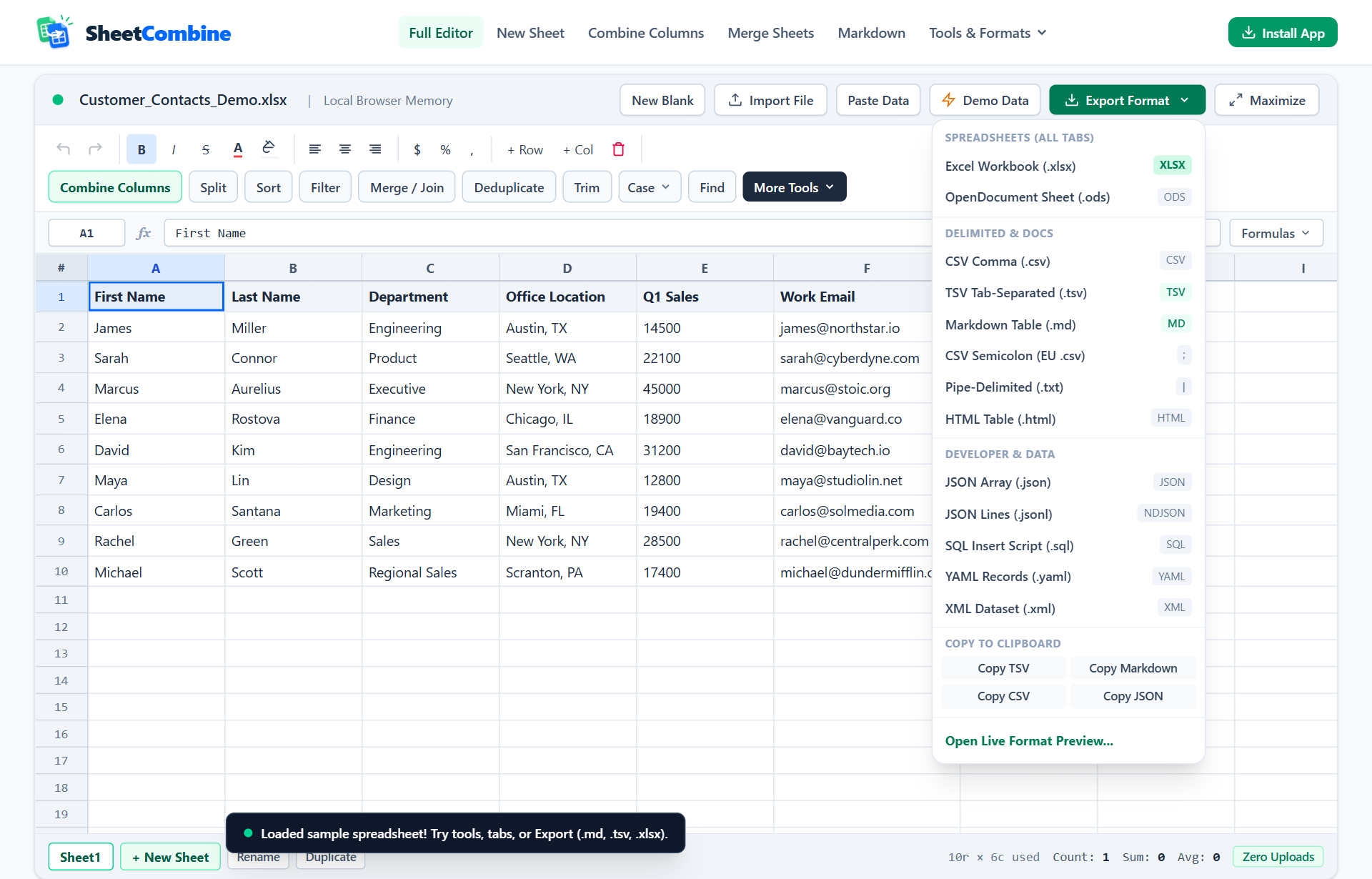
Skip manual formulas or run this workflow directly on your file in local browser memory.
Quick Steps Overview
- 1
Keep raw strings untouched when importing CSVs
Avoid double-clicking .csv files straight into desktop Excel (which strips leading zeros instantly). Open CSV files inside SheetCombine or Excel Data -> From Text/CSV with Text column type.
- 2
Restore already-stripped 5-digit US ZIP codes
If desktop Excel already turned 02134 into 2134, recover leading zeros using =TEXT(A2, "00000") in a helper column and Paste Values as Text.
- 3
Split full names or extract codes between characters
Use SheetCombine Split Columns (or Excel TEXTSPLIT / MID+SEARCH formulas) to isolate First Name, Last Name, or bracketed IDs cleanly.
- 4
Export cleanly to XLSX, CSV, or TSV
Export back to CSV/TSV or styled .xlsx with every padded zero preserved.
Double-clicking any CSV containing New England ZIP codes (02134), employee IDs (00419), or bank routing numbers causes desktop Excel to drop every leading zero silently on open. Fix stripped 5-digit ZIP codes in Excel using =TEXT(A2, "00000"), or avoid losing them completely by opening and cleaning raw CSV/TSV files inside browser memory instead.
1. Recover Already-Stripped 5-Digit ZIP Codes (02134)
Notice the subtle trap in desktop Excel: choosing Format Cells → Special → Zip Code only looks padded inside Excel. Exporting back to .csv still dumps 2134 in many workflows. Convert the cell into a genuine 5-character string instead:
=IF(ISNUMBER(A2), TEXT(A2, "00000"), A2)That protects longer ZIP+4 codes (02134-4410) untouched while padding numeric 2134 values cleanly back to "02134". Copy → Paste Values over the old column afterward.
2. Prevent Excel From Stripping Leading Zeros on Open
- Inside SheetCombine (fastest): Drop your
.csvor.tsvstraight into Clean CSV or Combine Columns. SheetCombine preserves cell text verbatim without converting00419to integer419. - Inside Desktop Excel: Never double-click the CSV icon. Open a blank workbook first, navigate to Data → From Text/CSV, click Transform Data, and change the ZIP/ID column data type to Text before loading.
3. Split Full Names & Extract Text Between Characters
Once leading zeros are safe, two string cleanups almost always follow on mailing lists and product catalogs:
| Task | Excel / Sheets Formula | Zero-Formula Tool |
|---|---|---|
Split "James Miller" into 2 columns | =TEXTSPLIT(A2, " ") (Excel 365) | Split Columns Tool |
Extract text between ( and ) | =MID(A2, SEARCH("(",A2)+1, SEARCH(")",A2)-SEARCH("(",A2)-1) | Formula Generator |
Combine City + State + ZIP | =TEXTJOIN(" ", TRUE, B2:D2) | Combine Columns Tool |
Run It Yourself — Zero Server Uploads
Ready to process your own workbook?
Every transform runs in your local browser memory. Paste data, import .xlsx / .csv / .md, apply styles, and export clean results immediately.
Frequently Asked Questions
Why does Excel delete leading zeros from ZIP codes like 02134 every time I open a CSV?▼
When you double-click a .csv file, Excel auto-guesses column types and converts numeric-looking text ("02134") into floating-point numbers (2134). Saving the file afterward permanently overwrites the lost zero in the CSV.
What Excel formula puts leading zeros back on 4-digit Massachusetts or New Jersey ZIP codes?▼
Use =TEXT(A2, "00000") in a blank column. For mixed 5-digit and ZIP+4 (02134-1200) cells, check length first: =IF(ISNUMBER(A2), TEXT(A2, "00000"), A2). Then Copy -> Paste Values before deleting source columns.
How do I split a Full Name column into First and Last Name cleanly?▼
In SheetCombine, open Split Columns, choose Space delimiter, and split cleanly into First Name and Last Name without worrying about formulas. In Excel 365, use =TEXTSPLIT(A2, " ").
How do I extract text between two characters (like parentheses or hyphens) in Excel?▼
Use =MID(A2, SEARCH("(", A2)+1, SEARCH(")", A2)-SEARCH("(", A2)-1), or use the SheetCombine Formula Generator to swap your exact start and end markers.
More Spreadsheet Guides
View All Guides →All-in-One Excel Formula Generator
Generate ZIP zero-padding, extract-between-characters, and TEXTJOIN formulas.
Interactive ToolClean Messy CSV File Online
Edit CSVs in browser memory without double-click auto-formatting bugs.
Interactive ToolSplit Columns Tool
Break full names, addresses, or SKU codes apart in 1 click.