
How SheetCombine JSON & NDJSON Table Conversion Works Without Server Uploads
Understand how SheetCombine sniffs JSON arrays, single wrapper objects, and newline-delimited NDJSON logs, normalizes sparse keys into columns, and exports round-trip CSV, XLSX, YAML, or SQL.
Interactive Tool Included
Skip manual formulas or run this workflow directly on your file in local browser memory.
Quick Steps Overview
- 1
Paste or drop JSON, .jsonl, or .ndjson text
SheetCombine removes UTF-8 BOM bytes and auto-detects JSON arrays starting with "[", JSON objects starting with "{", or line-by-line JSONL streams.
- 2
Normalize heterogeneous keys across objects
Every object key across all rows is collected in encounter order so records missing optional fields leave clean empty cells instead of breaking column order.
- 3
Keep IDs and ZIP codes as clean strings
Padded strings stay quoted properly inside CSV exports and keep leading zeros when inspecting or deduplicating before opening in Excel.
- 4
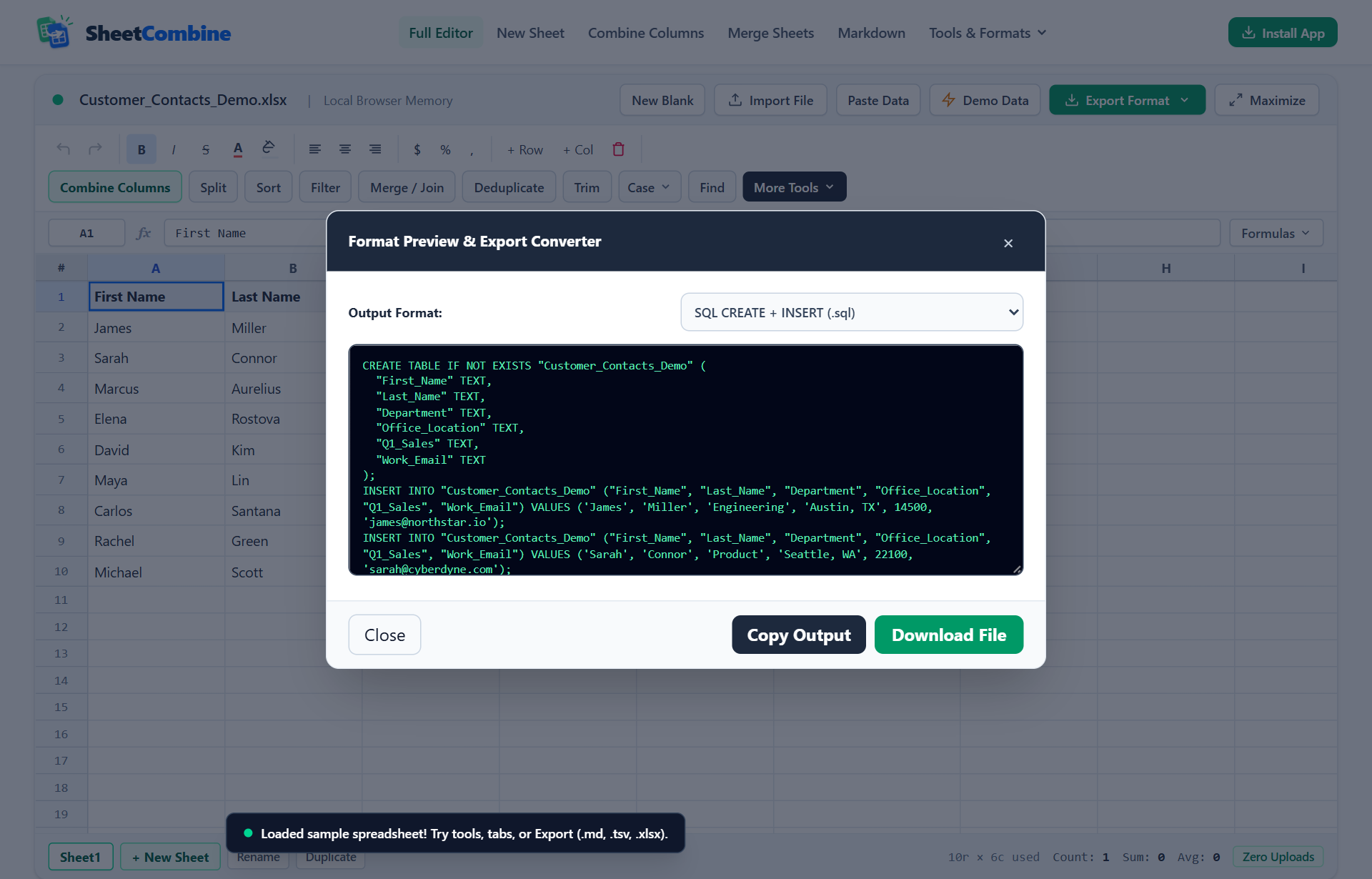
Export back to CSV, XLSX, JSONL, or SQL INSERT
Switch seamlessly between formats or turn spreadsheets back into compact JSON arrays with Excel to JSON.
API responses, Stripe exports, and application logs arrive in JSON or newline-delimited NDJSON (.jsonl), which desktop Excel struggles to import consistently across versions. Here is how SheetCombine JSON to CSV transforms payloads into clean spreadsheets locally.
Supported JSON Input Structures
| Input Shape | How SheetCombine Detects & Handles It |
|---|---|
[{"id": 1, ...}, ...] | Parsed via JSON array reader; unions all object keys as header columns. |
Line-by-line {"event":"click"}
{"event":"buy"} | Falls back automatically to parseJSONLToMatrix line-by-line parsing. |
| Spreadsheet → JSON | Use Excel to JSON or CSV to JSON to rebuild clean key/value objects. |
Why Browser-Side Parsing Matters for JSON Exports
API exports routinely carry internal user emails, order totals, webhook tokens, and production IDs. Uploading raw database or API dumps to random cloud converters exposes sensitive business logs; SheetCombine keeps 100% of parsing inside your browser tab memory.
Run It Yourself — Zero Server Uploads
Ready to process your own workbook?
Every transform runs in your local browser memory. Paste data, import .xlsx / .csv / .md, apply styles, and export clean results immediately.
Frequently Asked Questions
What is the difference between JSON and NDJSON / JSONL in SheetCombine?▼
Standard JSON wraps all rows in one outer array ([{...}, {...}]). NDJSON / JSONL places one independent JSON object per line without commas or outer brackets — SheetCombine parses both automatically.
What happens when a nested object or array exists inside a JSON field?▼
Nested sub-objects or arrays are serialized cleanly into readable string values inside their column cell so the tabular CSV/Excel row structure remains valid.
Can I go the opposite direction from Excel or CSV back to JSON?▼
Yes. Open /excel-to-json/ or /csv-to-json/, paste rows or drop an .xlsx/.csv file, and export formatted JSON or JSONL (with optional numeric auto-typing) directly from browser memory.
More Spreadsheet Guides
View All Guides →JSON to CSV Converter Tool
Convert API payloads and NDJSON logs directly to CSV in browser RAM.
Interactive ToolExcel & CSV to JSON Tool
Turn spreadsheets and multi-column workbooks back into clean JSON arrays.
How Tools WorkHow XML to CSV Parsing Works
See how repeating XML tags and attributes map cleanly into columns.