
Excel Formula Not Calculating: 6 Fast Fixes (Text Format, Manual Calc, Spaces & Show Formulas)
Fix Excel formulas showing the literal formula string, returning 0 on numbers, or refusing to update on edits. Covers Manual Calculation mode, Text format lock, Show Formulas toggle, and hidden spaces.
Interactive Tool Included
Skip manual formulas or run this workflow directly on your file in local browser memory.
Quick Steps Overview
- 1
Switch Workbook Calculation to Automatic
In desktop Excel, open Formulas -> Calculation Options -> Automatic (or press F9 / Ctrl+Alt+F9 to force a full recalculation).
- 2
Toggle off Show Formulas mode
Press Ctrl + ` (grave accent above Tab) if every formula cell displays =SUM(...) instead of its numeric output.
- 3
Convert cells stored as Text back to General
Highlight the formula cell, set Home -> Number Format to General, click into the formula bar, and press Enter (or find/replace "=" with "=").
- 4
Check or test rows in SheetCombine
Paste suspicious numeric columns into SheetCombine, run Trim to strip stray whitespace characters, and test =SUM, =AVERAGE, =COUNT, or =IF cleanly.
When an Excel formula prints verbatim text like =SUM(B2:B20), stays stuck on an old total after you change inputs, or evaluates to 0 despite visible numbers, nothing is wrong with your math. One of six specific Excel states is blocking calculation. Check them in order below — starting with the two settings responsible for nearly every case.
1. Calculation Options Set to "Manual" (Won't Update on Edits)
Excel remembers Calculation Mode across open workbooks. Opening someone else's heavy model saved in Manual mode silently freezes recalculation for your own sheets too.
- Go to Formulas → Calculation Options → Automatic.
- Press
F9(recalculate active changes) orCtrl + Alt + F9(force full workbook rebuild). - In Google Sheets, open File → Settings → Calculation and verify On change is selected.
2. Cell Pre-Formatted as "Text" Before Typing the Formula
If a column was previously formatted as Text (@) — common after pasting CSV columns or editing ZIP/SKU sheets — typing =A2&" "&B2 stores the formula as plain text forever, even if you later change the cell format to General.
- Highlight the affected cells and switch Home → Number Format to General.
- Press
Ctrl + H(Find & Replace), enter=in both Find what and Replace with, and click Replace All. Excel immediately re-parses every cell as a live formula without touching your expressions.
3. Accidental Leading Space or Apostrophe Before =
Copied formulas from chats, web pages, or AI tools often sneak in a space (" =SUM(A2:A10)") or a leading single quote ('=VLOOKUP(...)). Look directly in the formula bar: strip anything sitting in front of the equals sign so = is strictly character #1.
4. "Show Formulas" Mode Accidentally Toggled On
Pressing Ctrl + ` (the backtick/tilde key left of 1) toggles Excel into audit view, widening columns and displaying formulas instead of answers across the whole sheet. Press Ctrl + ` again (or disable Formulas → Show Formulas) to bring calculated values back.
5. Numbers Pasted as Dirty Strings (Why SUM() Returns 0)
Web tables, PDF copy-pastes, and older ERP CSV exports hide invisible spaces (such as non-breaking space CHAR(160)) or text markers inside numeric columns. Excel's =SUM() and =AVERAGE() silently skip text-formatted numbers.
| Symptom | Cause | Fast Fix |
|---|---|---|
SUM(E2:E10) returns 0 | Numbers stored as text / spaces | Run Trim in SheetCombine or paste =VALUE(TRIM(SUBSTITUTE(E2,CHAR(160),""))) |
| Formula never refreshes | Manual calculation enabled | Formulas → Calculation Options → Automatic |
Every cell shows =IF(...) | Text format or Show Formulas | Format General + Find/Replace = with = |
#NAME? error | Typo or curly smart-quotes “ ” | Replace smart quotes pasted from blogs with straight ASCII " " |
6. Circular Reference Blocking Dependency Evaluation
Putting =SUM(B2:B10) inside cell B10 tells Excel to depend on its own output, tripping a circular reference warning (bottom-left status bar) and freezing updates cleanly until fixed. Move totals outside the summed range, or test your numbers inside Clean CSV & SheetCombine Editor, which catches circular dependencies immediately without silent stale numbers.
Run It Yourself — Zero Server Uploads
Ready to process your own workbook?
Every transform runs in your local browser memory. Paste data, import .xlsx / .csv / .md, apply styles, and export clean results immediately.
Frequently Asked Questions
Why does Excel show my formula text instead of the calculated number?▼
Almost always one of three causes: the cell was pre-formatted as Text (@) before you typed "=", someone typed a leading space or apostrophe before "=", or Show Formulas mode (Ctrl + `) is turned on for that worksheet.
Why does SUM() return 0 when there are clearly numbers in the column?▼
CSV and CRM imports frequently store numbers as text strings containing trailing spaces, non-breaking spaces (CHAR(160)), or dollar signs pasted from the web. Excel SUM() ignores text values completely and returns 0.
Why do formulas refuse to update until I double-click each cell?▼
Workbook calculation was accidentally switched to Manual — often inherited from an external template or large workbook opened earlier in the same Excel session. Reset it under Formulas -> Calculation Options -> Automatic.
How can I verify quickly whether my CSV values are clean numbers or hidden text?▼
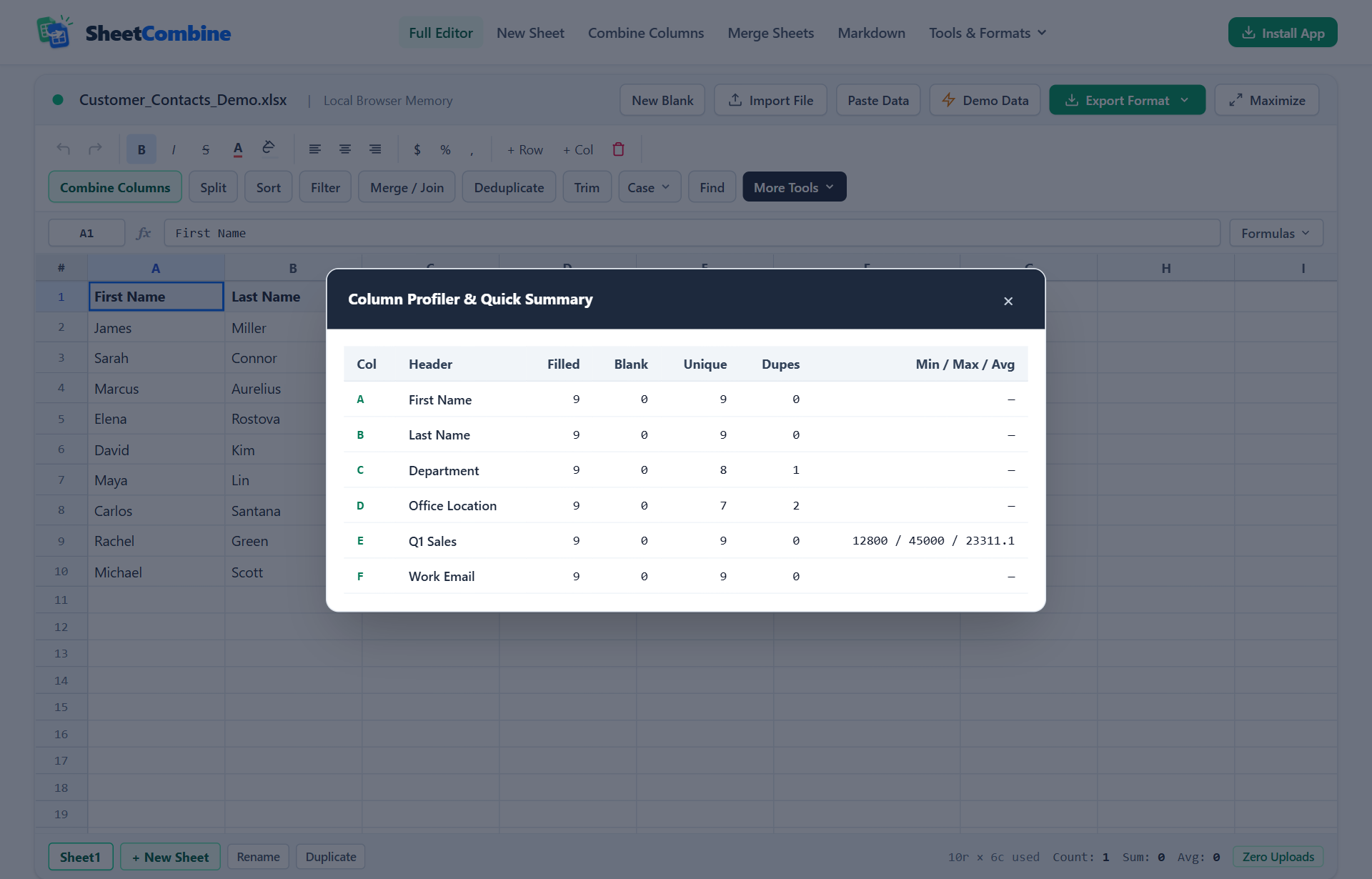
Open or paste the sheet into SheetCombine and click More Tools -> Column Stats. Any column that fails to show Min / Max / Avg contains non-numeric text characters mixed into the column.
More Spreadsheet Guides
View All Guides →All-in-One Excel & Google Sheets Formula Generator
Build syntax-clean TEXTJOIN, COUNTIF, SUMIF, MID/SEARCH, and ZIP padding formulas.
Interactive ToolHow to Run VLOOKUP With Multiple Criteria
Fix #N/A lookup failures and match two or more criteria cleanly.
Data CleaningFix Dropped Leading Zeros on ZIP Codes & CSVs
Stop Excel from stripping leading zeros when opening or formatting CSV files.