
How to Fix Excel #SPILL!, #N/A, #VALUE! & #REF! Errors Without Rebuilding Your Sheet
Step-by-step fixes for Excel #SPILL!, #N/A lookup failures, #VALUE! trailing spaces, and broken #REF! references — plus how to bypass #N/A completely with visual key joins.
Interactive Tool Included
Skip manual formulas or run this workflow directly on your file in local browser memory.
Quick Steps Overview
- 1
Clear blocking cells for #SPILL! errors
Click the #SPILL! cell to highlight its dotted spill border, then delete or move any text, spaces, or merged cells blocking the dynamic output range.
- 2
Eliminate #N/A mismatches in VLOOKUP & XLOOKUP
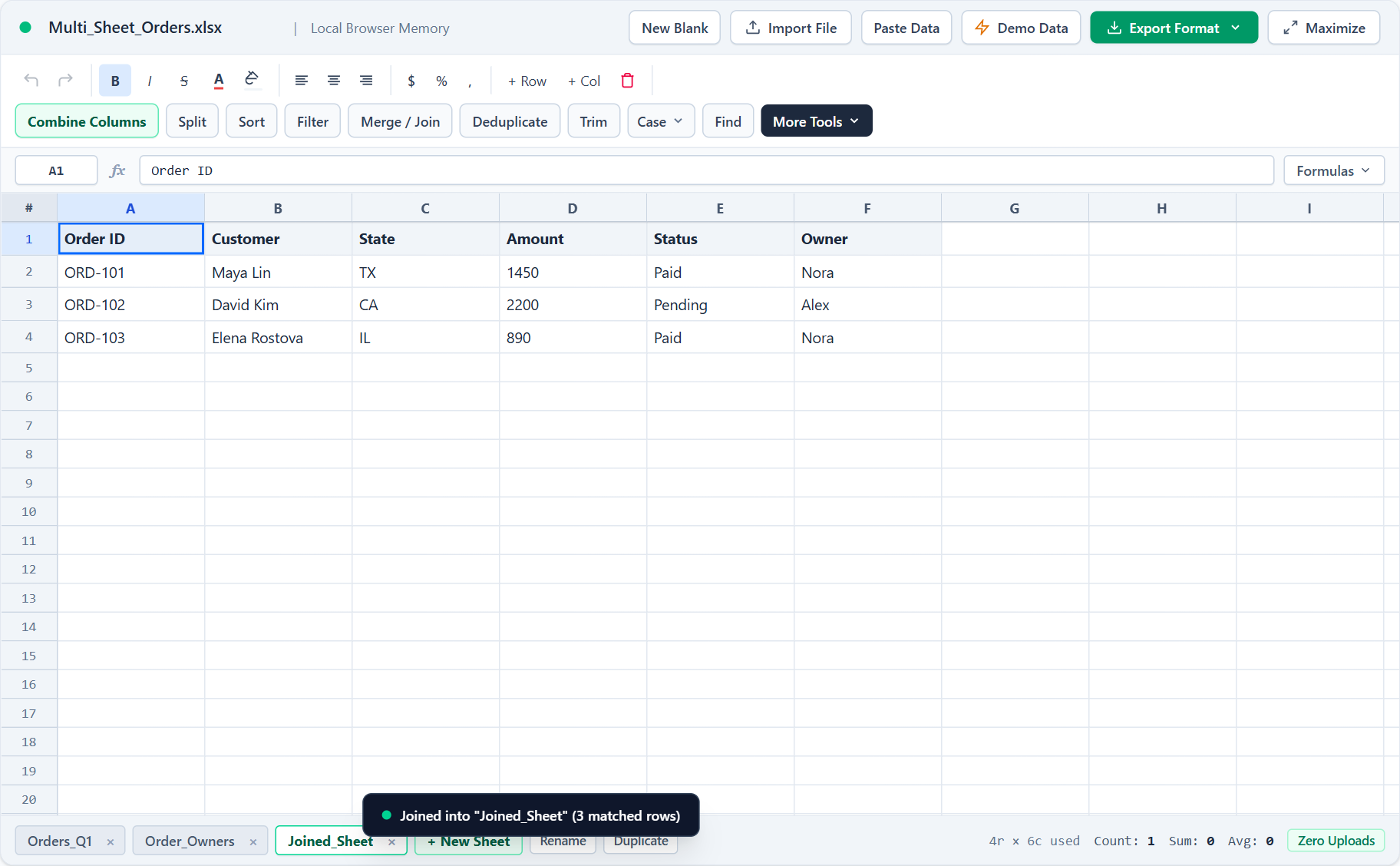
Trim hidden leading/trailing spaces on lookup keys or paste both tabs into SheetCombine and run Merge / Join Sheets (Left Join) with automatic whitespace trimming.
- 3
Strip invisible non-numeric characters causing #VALUE!
Use Clean Data -> Trim Whitespace or Column Stats in SheetCombine to pinpoint text strings inside numeric columns before adding or multiplying.
Quick Lookup Table: Every Major Excel Formula Error
| Error Code | Real Root Cause | Fastest 10-Second Fix |
|---|---|---|
#SPILL! | Blocking text, merged cell, or Table syntax inside dynamic array output range | Clear blocking cells or pass single cell A2 instead of A:A |
#N/A | Trailing space, text vs number key mismatch, or missing lookup value | Wrap with IFNA() / trim keys, or run SheetCombine Left Join |
#VALUE! | Hidden space, currency symbol, or text string inside math operator | Run Trim Whitespace on imported CSV columns before math |
#REF! | Formula pointed to a deleted row, column, or sheet tab | Undo deletion (Ctrl+Z) or remove hard-coded deleted range reference |
#NAME? | Typo in function name or unquoted text criterion inside formula | Quote text strings ("Paid") and verify Excel 365 availability |
Why Merging CSVs Visually Beats Debugging #N/A & #SPILL!
When combining CRM exports, Shopify orders, or inventory CSVs, formula errors usually waste more time than the calculation itself because one stray space breaks VLOOKUP or one merged cell breaks a dynamic array spill.
Opening both files as tabs in SheetCombine Merge Sheets trims accidental whitespace cleanly and merges rows into static, copy-paste-ready cells that never break when rows are sorted or emailed.
Run It Yourself — Zero Server Uploads
Ready to process your own workbook?
Every transform runs in your local browser memory. Paste data, import .xlsx / .csv / .md, apply styles, and export clean results immediately.
Frequently Asked Questions
Why does Excel show #SPILL! on my VLOOKUP or XLOOKUP?▼
In Excel 365, dynamic array formulas try to expand into neighboring cells automatically. If you pass a whole column range as the lookup value (e.g., =VLOOKUP(A:A, ...)) instead of a single cell like A2, or if an existing value blocks the spill area, Excel throws #SPILL!.
Why does VLOOKUP return #N/A even when I can visually see the matching ID?▼
Over 80% of false #N/A errors happen because one sheet stores the ID as text ("00451") while the other stores a number (451), or because one side has a trailing space ("SKU-12 ").
What causes #VALUE! when adding cells in Excel?▼
#VALUE! triggers whenever arithmetic operators (+, -, *) touch a text string or a cell containing hidden spaces instead of a pure number. Wrap ranges in SUM() or trim/clean your CSV column first.