
How Merging Multiple CSV Files Works in SheetCombine Without VLOOKUP Errors
Technical walkthrough of both SheetCombine multi-CSV merge engines: vertical row stacking with automatic header alignment, and horizontal hash-map Left Join without #N/A formula breaks.
Interactive Tool Included
Skip manual formulas or run this workflow directly on your file in local browser memory.
Quick Steps Overview
- 1
Import two or more CSV/XLSX files as workspace tabs
Each dropped file or pasted sheet loads cleanly into its own tab inside SheetCombine local browser state without hitting a remote server.
- 2
Pick Append Rows (Vertical) OR Left Join (Horizontal Lookup)
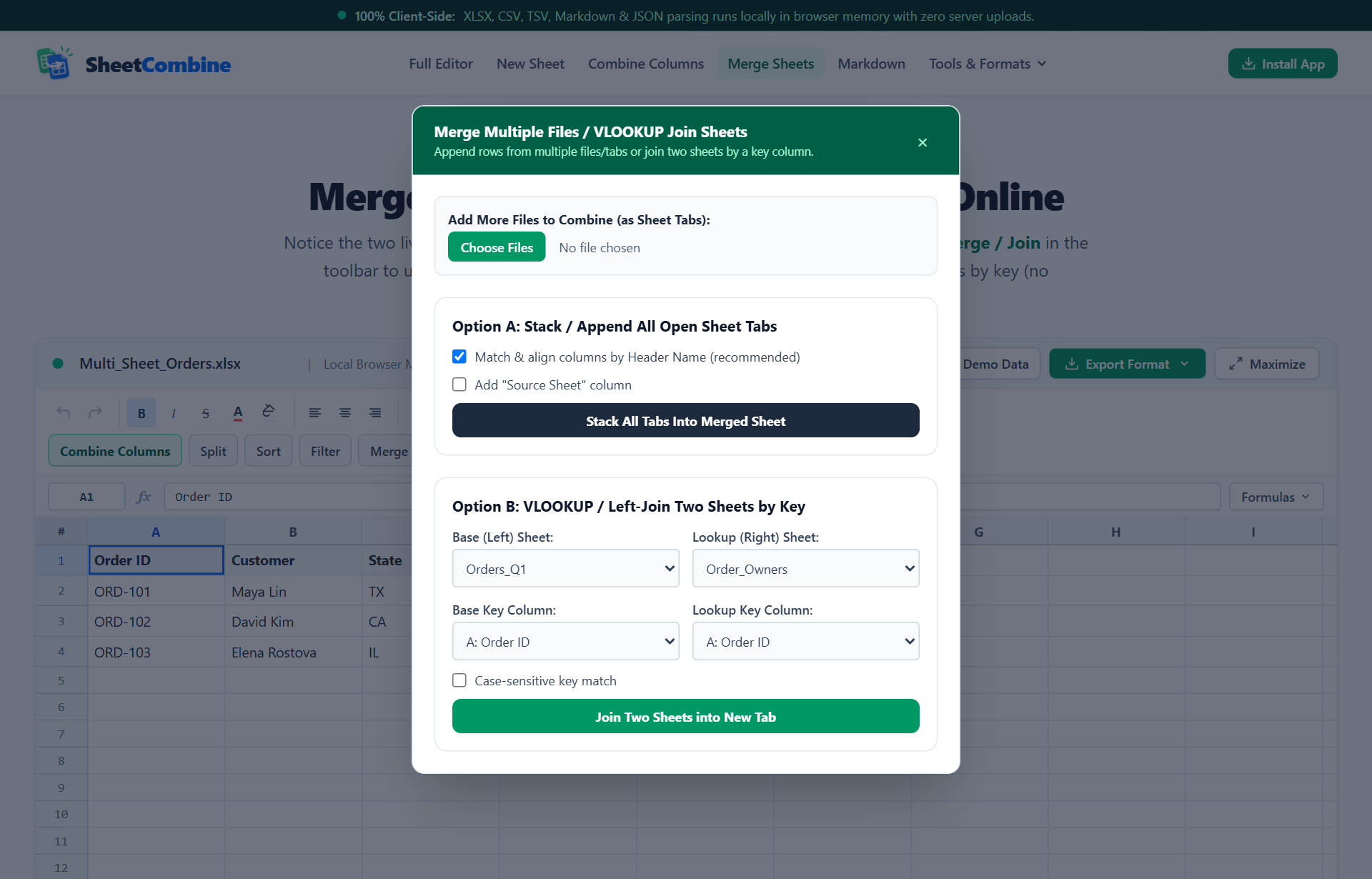
Append stacks compatible CSV files top-to-bottom (with optional header alignment and a Source Sheet column). Left Join enriches Tab A rows with matched columns from Tab B on a shared key ID.
- 3
Automatic whitespace trimming on Join Keys
During Left Join, both keys pass through trimmed lookup normalization (case-insensitive by default, or exact case-sensitive if toggled) so trailing spaces never cause silent missed matches.
- 4
Inspect match count and export the unified result
SheetCombine generates a new clean merged tab showing exact matched row counts, ready for deduplication or download as CSV or XLSX.
Merging CSV files manually forces people into fragile copy-paste or VLOOKUP() formulas that throw #N/A whenever a key has a trailing space or text-vs-number formatting mismatch. SheetCombine Merge CSV Files replaces manual formula wiring with two deterministic in-browser operations.
Mode 1: Vertical Append (Union + Optional Source Column)
Under the hood, appendSheets reads all non-empty selected tabs. With Align by headers checked, it constructs a unified list of case-insensitive headers across every CSV file and routes each row's values into its exact named column—optionally prepending a Source Sheet audit column so you always know which file each row originated from.
Mode 2: Horizontal Left Join (Hash-Map Key Lookup)
| Step in Join Engine | What Happens Behind the Scenes |
|---|---|
| 1. Build Lookup Map | Indexes the Right sheet key column using trim() (and lowercase unless Case-Sensitive is enabled). |
| 2. Stream Left Rows | Walks each row in the Left sheet, matches the trimmed key against the index map in O(1) lookup time. |
| 3. Output Clean Static Grid | Appends the non-key columns from the Right sheet with blank cells (never #N/A) when unmatched, and logs matched row count. |
Because the output tab stores plain values rather than brittle volatile links across external files, sorting rows, deleting source tabs, or exporting to .xlsx and .csv never breaks references with #REF!.
Run It Yourself — Zero Server Uploads
Ready to process your own workbook?
Every transform runs in your local browser memory. Paste data, import .xlsx / .csv / .md, apply styles, and export clean results immediately.
Frequently Asked Questions
When should I use Append vs Left Join when merging CSVs?▼
Use Append (Stack Vertically) when files share similar columns from different periods or regions (like Jan.csv + Feb.csv + Mar.csv). Use Left Join when one sheet has orders and another sheet adds customer details keyed by Customer ID or Email.
What if CSV files have columns in a different order during Append?▼
Keep "Align by header names" enabled. SheetCombine indexes every column header case-insensitively and maps values into the matching destination column instead of misaligning columns blindly by position.
Does Left Join delete unmatched rows from the main sheet?▼
No. A Left Join keeps all rows from your primary Left sheet intact and fills in matched fields from the Right sheet (leaving non-matching lookup fields cleanly blank instead of throwing #N/A formula errors).
More Spreadsheet Guides
View All Guides →Merge Multiple CSV Files Online Tool
Combine monthly CSV exports or join tables visually in your browser.
Interactive ToolVLOOKUP & XLOOKUP Multiple Criteria
Match spreadsheets across two or more key columns without helper formulas.
TroubleshootingFix Excel #SPILL!, #N/A & #VALUE! Errors
Troubleshoot broken dynamic arrays and trailing-space VLOOKUP failures.