
Excel Formula to Find Duplicates: Exact COUNTIF Syntax, Multi-Column Checks & Fast Removal
Copy exact COUNTIF and COUNTIFS Excel formulas to flag duplicate rows, catch second occurrences only, highlight repeats with Conditional Formatting, or audit & deduplicate CSVs in 1 click.
Interactive Tool Included
Skip manual formulas or run this workflow directly on your file in local browser memory.
Quick Steps Overview
- 1
Pick single-column vs multi-column duplicate matching
Check one column (like Email or Order ID) with COUNTIF, or combine multiple columns (First + Last + Company) using COUNTIFS.
- 2
Lock range references with $ signs
Use absolute bounds =COUNTIF($A$2:$A$500, A2)>1 so dragging down never shifts the top or bottom of your lookup table.
- 3
Audit repeat counts cleanly in SheetCombine
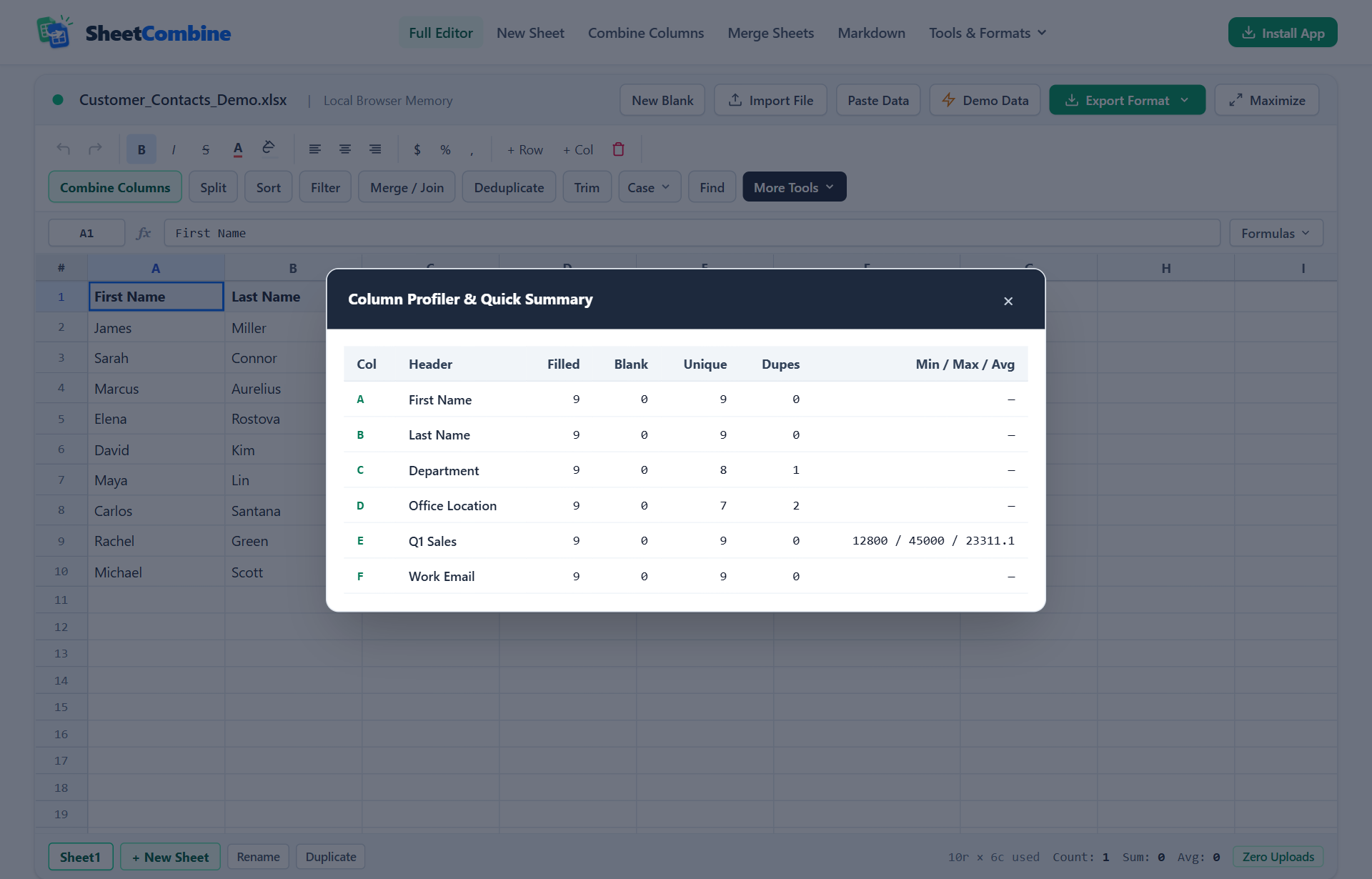
Paste your CSV or import .xlsx, then click More Tools -> Column Stats to see exact Unique vs Dupes counts across every column immediately.
- 4
Trim spaces and click Deduplicate
Run Trim before clicking Deduplicate (or Remove Duplicates tool) so trailing spaces never leave hidden duplicate emails behind.
To flag duplicate values in an Excel column using a formula, enter =IF(COUNTIF($A$2:$A$500, A2)>1, "Duplicate", "Unique") in an empty helper column and double-click the fill handle down. If you want to isolate second occurrences cleanly, compare two columns at once, or strip repeats without leaving formulas behind, pick the exact pattern below.
1. Flag Every Occurrence of a Duplicate
Marks all matching rows (both first and second copies) so you can filter them together and inspect which record holds fresher fields:
=IF(COUNTIF($A$2:$A$500, A2)>1, "Duplicate", "Unique")The $ locks on $A$2:$A$500 are essential. Leaving them off checks a shifting window and misses duplicates sitting above the current row.
2. Flag Only Subsequent Duplicates (Keep the First Row Safe)
When deduplicating manually without deleting data prematurely, anchor only the top cell ($A$2) while letting the bottom reference grow with the row:
=IF(COUNTIF($A$2:A2, A2)>1, "Delete Copy", "First / Keep")Filter the sheet on "Delete Copy" to verify which rows will drop before deleting them.
3. Find Duplicate Rows Across Two or More Columns
Two people named David Kim might live in different cities — checking Email or Full Name + Office avoids false positives. Use COUNTIFS:
=IF(COUNTIFS($A$2:$A$500, A2, $B$2:$B$500, B2)>1, "Duplicate Pair", "Unique")4. Highlight Duplicates Visually (No Helper Column Needed)
- Highlight column values (for example
A2:A500). - Open Home → Conditional Formatting → Highlight Cells Rules → Duplicate Values.
- Pick a fill color and click OK. Remember: Conditional Formatting highlights repeats visually, whereas SheetCombine fill styling can be exported directly inside
.xlsxfiles.
5. Skip Formulas: Audit & Remove Duplicates in Browser Memory
On CRM CSV exports, stray trailing spaces ("nora@acme.com " vs "nora@acme.com") trick COUNTIF and Excel's Remove Duplicates unless you strip spaces first (exact match in Excel ignores trailing whitespace only inconsistently across imports). Inside SheetCombine:
- Load or paste your CSV/XLSX in Clean CSV or Remove Duplicates.
- Click More Tools → Column Stats to inspect duplicate counts column by column.
- Click Trim once, then run Deduplicate on your chosen column(s) and download a clean
.xlsx,.csv, or.tsv.
Run It Yourself — Zero Server Uploads
Ready to process your own workbook?
Every transform runs in your local browser memory. Paste data, import .xlsx / .csv / .md, apply styles, and export clean results immediately.
Frequently Asked Questions
What is the simplest Excel formula to find duplicates in one column?▼
Type =IF(COUNTIF($A$2:$A$500, A2)>1, "Duplicate", "Unique") in cell B2 and fill down. Remember the $ dollar signs on $A$2:$A$500 so the comparison window does not slide downward on later rows.
How do I flag ONLY the second and later occurrences (keeping the first row marked Keep)?▼
Anchor only the starting cell of the range: =IF(COUNTIF($A$2:A2, A2)>1, "Extra Duplicate", "Keep First"). As you drag down, row 2 checks $A$2:A2 (count 1 = Keep), while row 15 checks $A$2:A15 and catches repeats.
How do I find duplicate rows based on TWO columns in Excel?▼
Use COUNTIFS instead of COUNTIF: =IF(COUNTIFS($A$2:$A$500, A2, $B$2:$B$500, B2)>1, "Duplicate", "Unique").
Can I count or remove duplicates without adding formula helper columns?▼
Yes. In SheetCombine, click More Tools -> Column Stats for instant duplicate counts per column, or open Remove Duplicates to strip repeats globally or by key column in one click.
More Spreadsheet Guides
View All Guides →Remove Duplicate Rows Tool
Delete repeated rows globally or by Email/ID column directly in browser memory.
Interactive ToolAll-in-One Excel Formula Generator
Customize your COUNTIF duplicate range and copy the exact formula in seconds.
Data CleaningAudit, Deduplicate, Sort & Clean Messy CSV Data
Full 4-step cleanup workflow: Profile -> Trim -> Deduplicate -> Sort.