
How to Style Multi-Selected Spreadsheet Cells Online & Keep Formatting on Export
Hold Ctrl or Cmd to select non-adjacent cells like Google Sheets, apply fill and font colors, maximize your grid workspace, install offline as a PWA, and export real styled .xlsx files.
Interactive Tool Included
Skip manual formulas or run this workflow directly on your file in local browser memory.
Quick Steps Overview
- 1
Select multiple ranges with Ctrl / Cmd
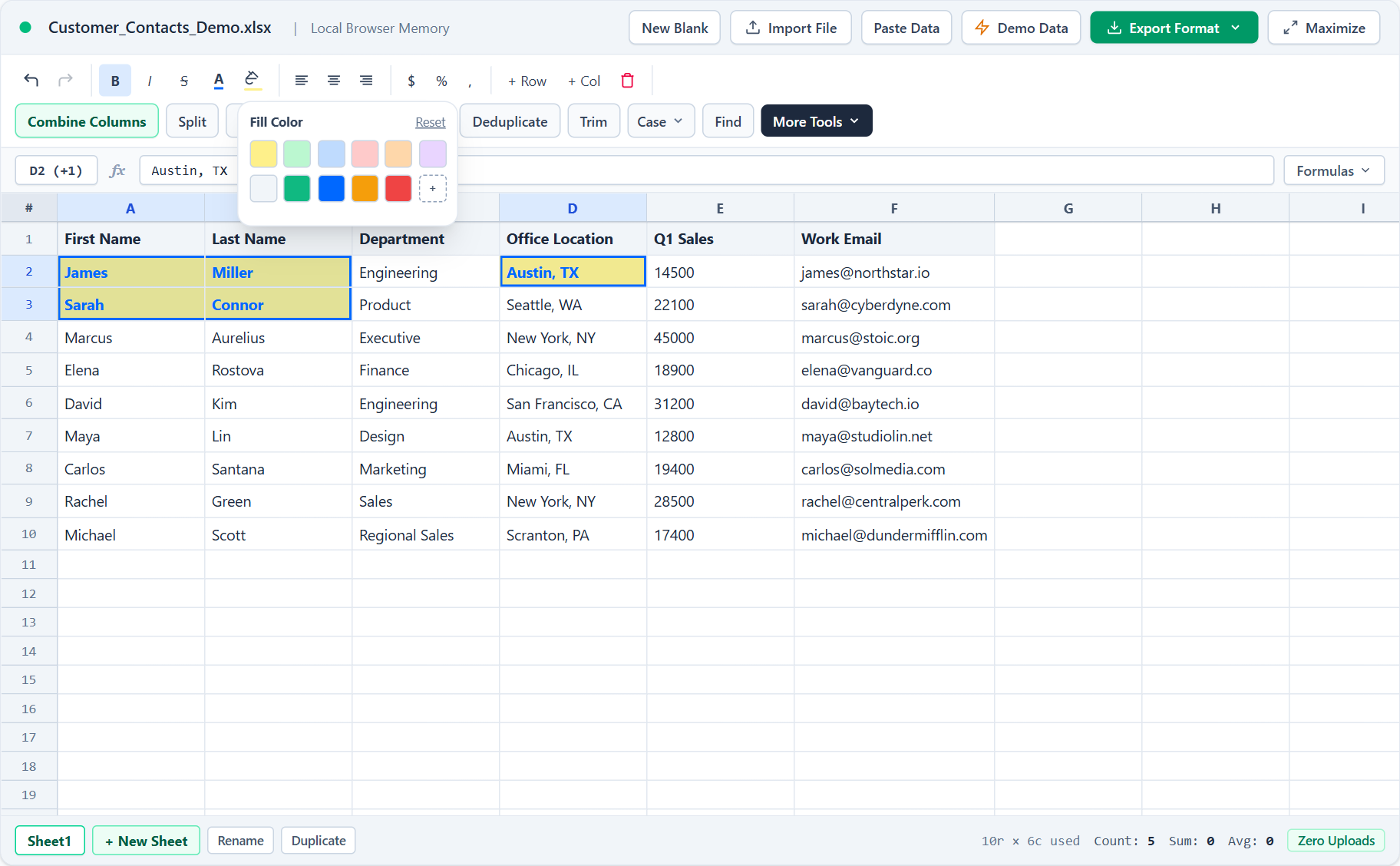
Drag your first block (for example A2:B3), then hold Ctrl (Windows/Linux) or Cmd (Mac) and drag or click D2 to build non-adjacent selections. Hold Shift to extend a rectangle.
- 2
Apply Fill Color, Text Color, Typography & Number Formats
Choose Bold, Italic, Strikethrough, Text Color, Fill Color, Alignments, Currency ($), Percent (%), or Comma formatting to style all selected ranges together.
- 3
Maximize the working area on smaller screens
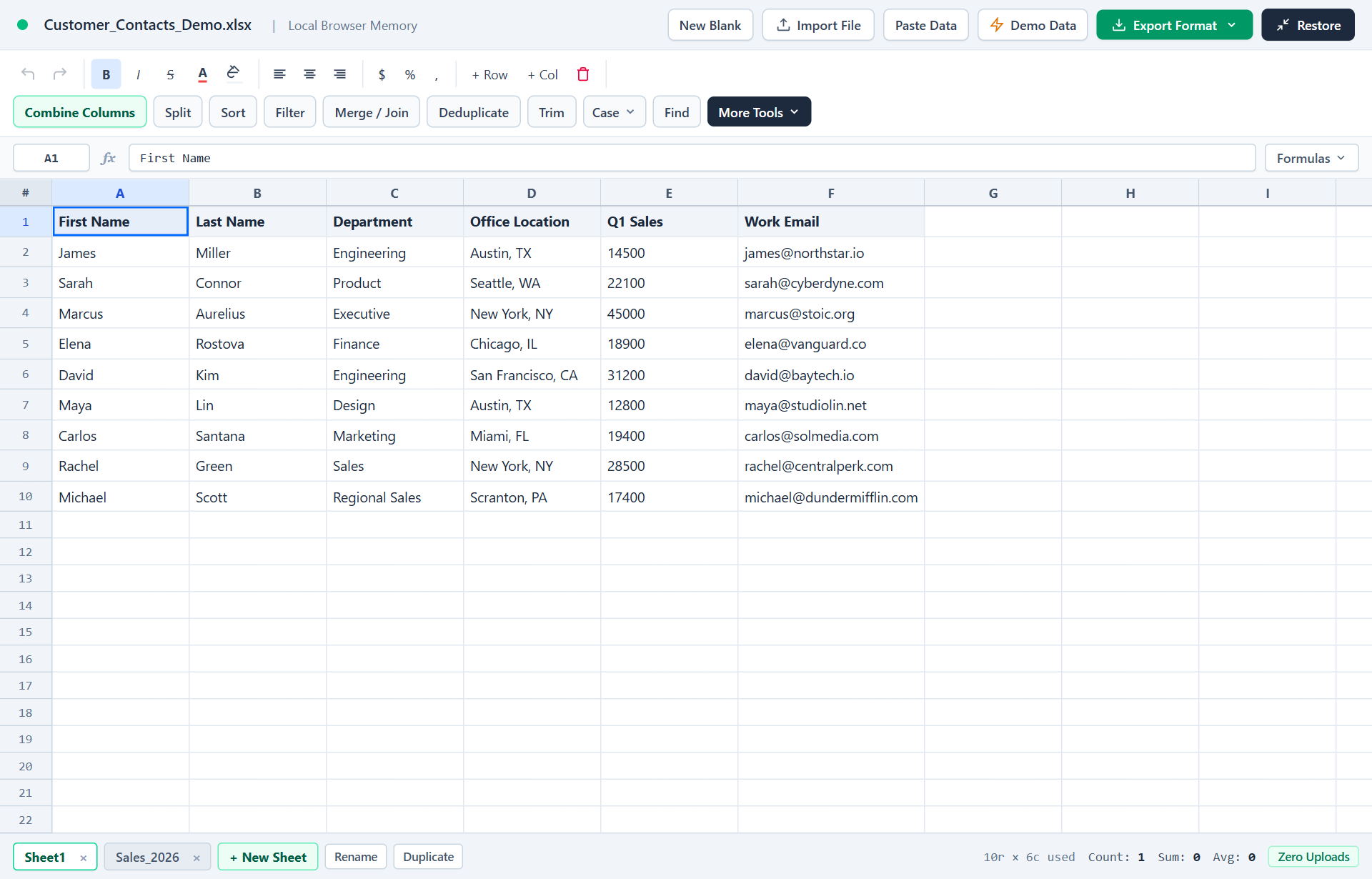
Click the Maximize button in the top-right action bar (or press Escape to exit) to expand the grid across your full viewport without losing toolbar access.
- 4
Export Styled Workbook (.xlsx) instead of plain CSV
Click Export Format -> Styled Workbook (.xlsx) so cell fills, font colors, bold headers, alignment, and column widths write straight into the Excel file.
Most browser CSV tools treat tables as plain text: you can neither color-code non-adjacent cells together nor keep header styling when exporting to Excel. SheetCombine implements Google Sheets-style multi-range selection (Ctrl / Cmd + click or drag), full viewport Maximize mode, and true .xlsx style serialization directly in browser memory.
Google Sheets-Style Multi-Range Selection Shortcuts
Instead of styling one block at a time, highlight scattered cells or disconnected columns and format all of them together:
| Action | Windows / Linux | macOS | Result in Name Box |
|---|---|---|---|
| Single rectangular range | Click & drag (or Shift + Click) | Click & drag (or Shift + Click) | Shows active cell (for example A2) |
| Add another range or scattered cell | Hold Ctrl + Click or Drag | Hold Cmd + Click or Drag | Displays extra range count (such as D2 (+1)) |
| Batch format all selected cells | Click Bold / Text / Fill Color / Align | Click Bold / Text / Fill Color / Align | Updates every cell across all ranges + supports Ctrl+Z Undo |
Maximize Workspace & Offline PWA App Mode
Editing wide tables inside a standard webpage header feels cramped on laptop screens. Click the Maximize button on the top-right bar of any SheetCombine editor to stretch the spreadsheet across your entire browser viewport while keeping the formula bar, toolbar, and sheet tabs active. Press Escape or click Restore anytime to return.
Working on flights or restricted networks? Click Install App in the top navigation bar to install SheetCombine locally as a Progressive Web App (PWA) so the engine launches in its own app window and runs offline.
Why Exported Colors Hold in XLSX (Never Use CSV for Styled Tables)
Plain .csv and .tsv files contain zero metadata for colors, font sizes, bold headers, alignment, or multiple worksheet tabs. When sharing formatted reports with teammates:
- Apply your Fill Colors, Text Colors, Bold headers, alignments, and number formats (
$,%,,). - Click Export Format in the top-right toolbar.
- Pick Excel Workbook (.xlsx) [Styled] (or CSV to Excel converter if converting raw CSVs into formatted workbooks).
- Open the downloaded
.xlsxin Microsoft Excel, LibreOffice Calc, or Google Sheets — every highlighted cell color, font weight, text color, number format, and tab name opens intact.
Run It Yourself — Zero Server Uploads
Ready to process your own workbook?
Every transform runs in your local browser memory. Paste data, import .xlsx / .csv / .md, apply styles, and export clean results immediately.
Frequently Asked Questions
Does SheetCombine preserve cell background colors and font styles when downloading Excel (.xlsx)?▼
Yes. Unlike plain CSV exports or basic converters that dump unstyled values, SheetCombine writes cell background fills, font colors, bold/italic/strikethrough weights, alignments, number formats, and column widths directly into every sheet of the downloaded .xlsx workbook using client-side ExcelJS.
How do I select non-adjacent cells or columns like Google Sheets?▼
Click and drag your first selection block (such as A2:B3). Next, hold Ctrl on Windows/Linux or Cmd on Mac and click or drag additional cells (such as D2). The formula bar name box displays your primary cell plus the extra range count, such as D2 (+1), and any formatting or clear action applies across all selected cells.
Can I work fullscreen or use SheetCombine offline without signing in?▼
Yes. Click Maximize in the top-right workspace bar to expand the spreadsheet across the full viewport (press Escape anytime to return). You can also click Install App in the top header to install SheetCombine as a desktop or mobile Progressive Web App that caches the editor offline.
Why did my colors disappear when I saved as CSV?▼
CSV is strictly plain text (comma-separated strings) and has no specification for colors, fonts, borders, or second worksheet tabs. Anytime formatting matters, export via Styled Workbook (.xlsx).
More Spreadsheet Guides
View All Guides →CSV vs TSV vs JSON & SQL Export Guide
Understand exactly which formats carry styling vs plain delimited data.
Combine & MergeMerge Sheets & VLOOKUP Without Formulas
Join multi-tab workbooks cleanly and retain tab names inside .xlsx downloads.
Data CleaningAudit, Deduplicate, Sort & Clean Messy CSV Data
Profile stats first, highlight outliers cleanly, and sort before exporting.