
How to Combine Two Columns in Excel & CSV Without Losing Data
Step-by-step instructions to combine first and last names, SKU codes, or addresses in Excel (=A2 & " " & B2, CONCAT, TEXTJOIN) or in 1 click directly in your browser.
Interactive Tool Included
Skip manual formulas or run this workflow directly on your file in local browser memory.
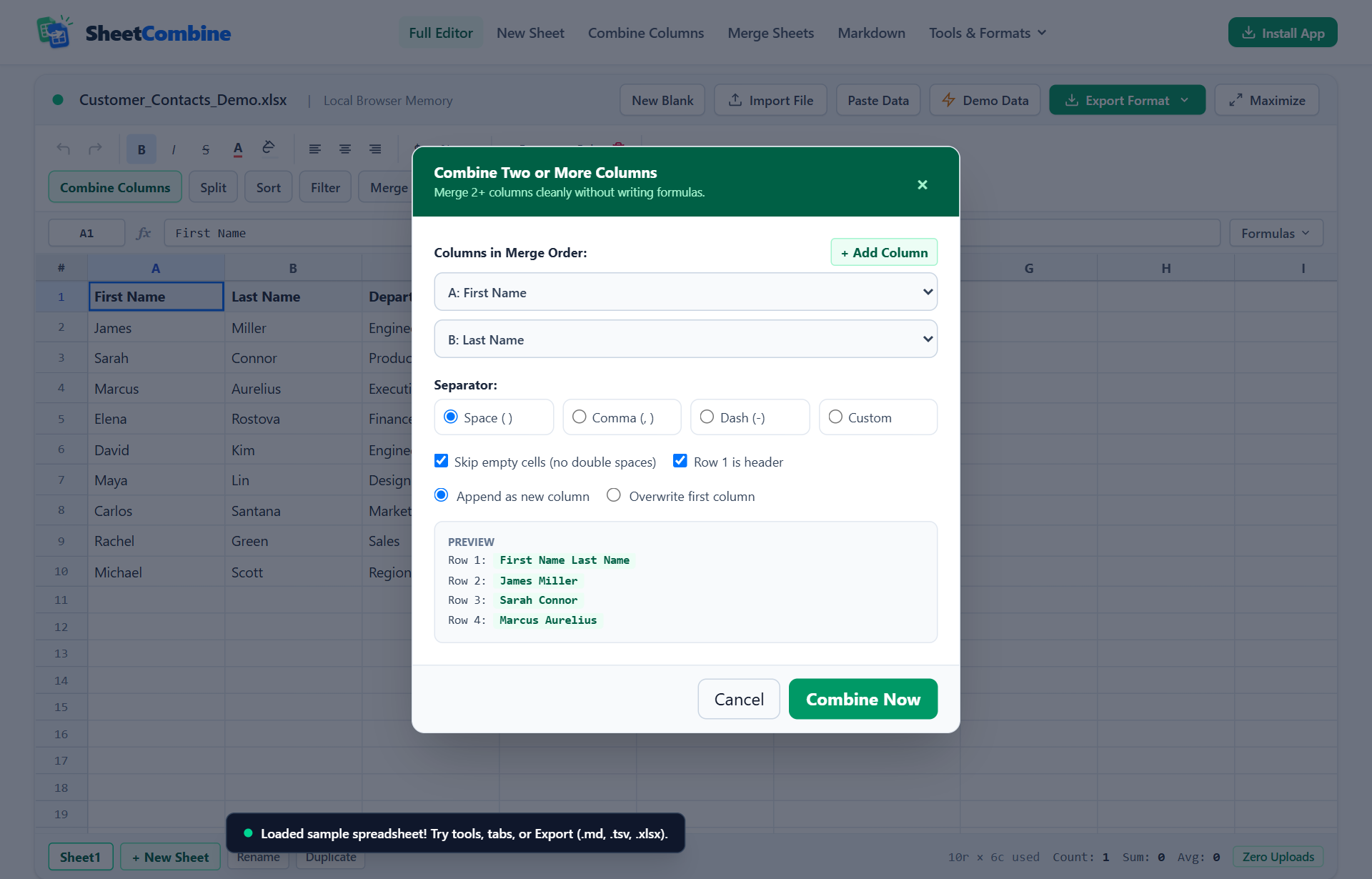
Quick Steps Overview
- 1
Open your spreadsheet or paste rows
Drop an .xlsx, .csv, or .tsv file into SheetCombine, paste clipboard rows, or click Demo Data to test immediately.
- 2
Click Combine Columns in the toolbar
Select the green Combine Columns action button in the spreadsheet toolbar to open the multi-column joiner dialog.
- 3
Pick columns and set a delimiter
Check two or more columns (such as First Name + Last Name), pick Space, Comma + Space, Hyphen, or a custom separator, and choose your output header.
- 4
Run the merge and export in any format
Choose whether to keep or delete source columns, apply the combine, then export clean .xlsx, .csv, .tsv, or Markdown.
To combine two columns in Excel with a space between them, enter =A2 & " " & B2 into an empty column, fill down, and paste values before deleting the original columns. When handling messy exports, blank cells, or five-column addresses where formulas break or strip leading zeros, the visual combiner handles the join directly in local browser memory without helper columns.
Method Comparison: Manual Formulas vs 1-Click Browser Combiner
Each approach fits a different situation. Live formulas make sense when source cells keep changing inside desktop Excel; a one-time transform makes more sense when preparing CRM imports, mailing lists, or database CSVs.
| Method | Example Input → Output | Handles Blanks? | Can Remove Source Columns? |
|---|---|---|---|
Ampersand (=A2 & " " & B2) | James + Miller → James Miller | No (adds stray spaces) | Only after Copy → Paste Values |
CONCAT (=CONCAT(A2," ",B2)) | James + Miller → James Miller | No | Only after Copy → Paste Values |
TEXTJOIN (=TEXTJOIN(", ", TRUE, A2:C2)) | Suite 4 + blank + TX → Suite 4, TX | Yes (when ignore_empty=TRUE) | Only after Copy → Paste Values |
| SheetCombine 1-Click | 2+ checked columns → new clean column | Yes (skips empty strings cleanly) | Yes (uncheck keep originals) |
Method 1: Combine Columns Manually in Desktop Excel or Google Sheets
Option A: Using the Ampersand (&) Operator
The & operator works in every version of Excel back to Excel 97 as well as Google Sheets and LibreOffice Calc:
- Click cell
C2next to your first data row (assuming headers live in Row 1). - Type
=A2 & " " & B2and pressEnter. - For a comma separator (such as
Austin, TX), use=A2 & ", " & B2. For SKU codes separated by a hyphen, use=A2 & "-" & B2. - Double-click the small square fill handle in the bottom-right corner of
C2to copy down all rows. - Critical step before deleting A or B: select column C, press
Ctrl+C, right-click → Paste Values (V). Deleting source columns first turns every formula into#REF!.
Option B: Skipping Blank Cells with TEXTJOIN
Merging mailing addresses breaks down with basic & formulas whenever Address Line 2 is empty, leaving ugly results like 410 Main St, , Austin, TX. Use TEXTJOIN instead:
=TEXTJOIN(", ", TRUE, B2:E2)Setting the second argument to TRUE skips empty cells cleanly. Remember to clean stray whitespace first if imported cells contain invisible space characters; TRIM paired with column cleaning stops empty-looking cells from inserting extra commas.
Method 2: Combine Multiple Columns in 1 Click (No Formulas Needed)
When you only want the finished table ready for CSV, TSV, Markdown, or a clean Excel download, helper columns slow you down. Open the interactive Combine Columns tool and work straight on the grid:
- Click Import File to load an
.xlsx,.csv, or.tsvsheet, click Paste Data for clipboard rows, or open a sample sheet with Demo Data. - Click Combine Columns in the toolbar to open the joiner modal.
- Check two or more columns in the order you want them joined (for example First Name followed by Last Name).
- Choose a separator (Space, Comma + Space, Hyphen, Pipe, Slash, Newline, or No Space) or type any custom string.
- Enter your destination header (for example
Full Name). Keep the Keep original columns after combining toggle off if you want the two source columns replaced cleanly by the combined result. - Click Combine Now, then open Export Format to save as styled
.xlsx,.csv, or clipboard text.
Common Pitfalls That Break Combined Columns
- Lost leading zeros on ZIP codes and SKU numbers: If a postal code like
02134sits in a numeric Excel cell, Excel already dropped the0before concatenation unless wrapped in=TEXT(D2, "00000") & "-" & E2. Importing raw CSV text directly into SheetCombine preserves string characters like02134untouched. - Trailing whitespace inside source cells: Old CRM exports often store
"James "with a trailing space, creating double spaces between first and last names. Run Trim in the SheetCombine toolbar once before combining. - Dates turning into 5-digit serial numbers: Combining a date cell such as
2026-11-11in Excel produces text like"Invoice 46337"unless wrapped inTEXT(A2, "yyyy-mm-dd"). Convert the date string or format the column beforehand.
Need to go the opposite direction and break a Full Name column back into separate First Name and Last Name columns? Switch directly to the Split Columns tool to split on spaces, commas, dashes, or custom delimiters in the same browser session.
Run It Yourself — Zero Server Uploads
Ready to process your own workbook?
Every transform runs in your local browser memory. Paste data, import .xlsx / .csv / .md, apply styles, and export clean results immediately.
Frequently Asked Questions
What is the fastest formula to combine two columns in Excel with a space?▼
Use =A2 & " " & B2 in a blank column and double-click the fill handle down the sheet. If one cell might be blank and you want to avoid double spaces, use =TEXTJOIN(" ", TRUE, A2, B2) in Excel 2019, Excel 365, or Google Sheets.
Why does combining columns strip leading zeros from ZIP codes or IDs?▼
Excel treats unformatted numbers like 02134 as integers (2134) as soon as a CSV is opened or recalculated. Format text IDs with TEXT(A2, "00000") inside formulas or run the combine in SheetCombine where raw string values stay intact.
Can I combine three or more columns and delete the original columns automatically?▼
Yes. Manual Excel formulas return errors (#REF!) if you delete source columns before pasting values. In the SheetCombine Combine Columns dialog, check multiple columns and turn off Keep original columns after combining to replace them in one step.
Do I have to upload my spreadsheet to combine columns in SheetCombine?▼
No. File parsing, column concatenation, and exporting run strictly inside your browser tab memory. Nothing leaves your computer.
More Spreadsheet Guides
View All Guides →How to Merge Excel Sheets & Run VLOOKUP Without Formulas
Join two separate workbook tabs on a matching key column without #N/A errors.
Data CleaningAudit, Deduplicate, Sort & Clean Messy CSV Data
Profile duplicates, trim extra spaces, and fix casing before exporting.
Format ConversionConvert Excel & CSV to Markdown Pipe Tables
Format spreadsheets for GitHub READMEs, docs, and static sites.