
How to Merge Excel Sheets and Run VLOOKUP Joins Without Writing Formulas
Join two Excel tabs or CSV files by matching a shared ID column (like VLOOKUP / XLOOKUP), or stack multiple sheets vertically into one tab cleanly in your browser.
Interactive Tool Included
Skip manual formulas or run this workflow directly on your file in local browser memory.
Quick Steps Overview
- 1
Open both worksheets in your workbook
Import a multi-sheet .xlsx file or click + New Sheet and load your second CSV/TSV file so both tabs (such as Orders_Q1 and Order_Owners) exist side-by-side.
- 2
Click Merge / Join in the toolbar
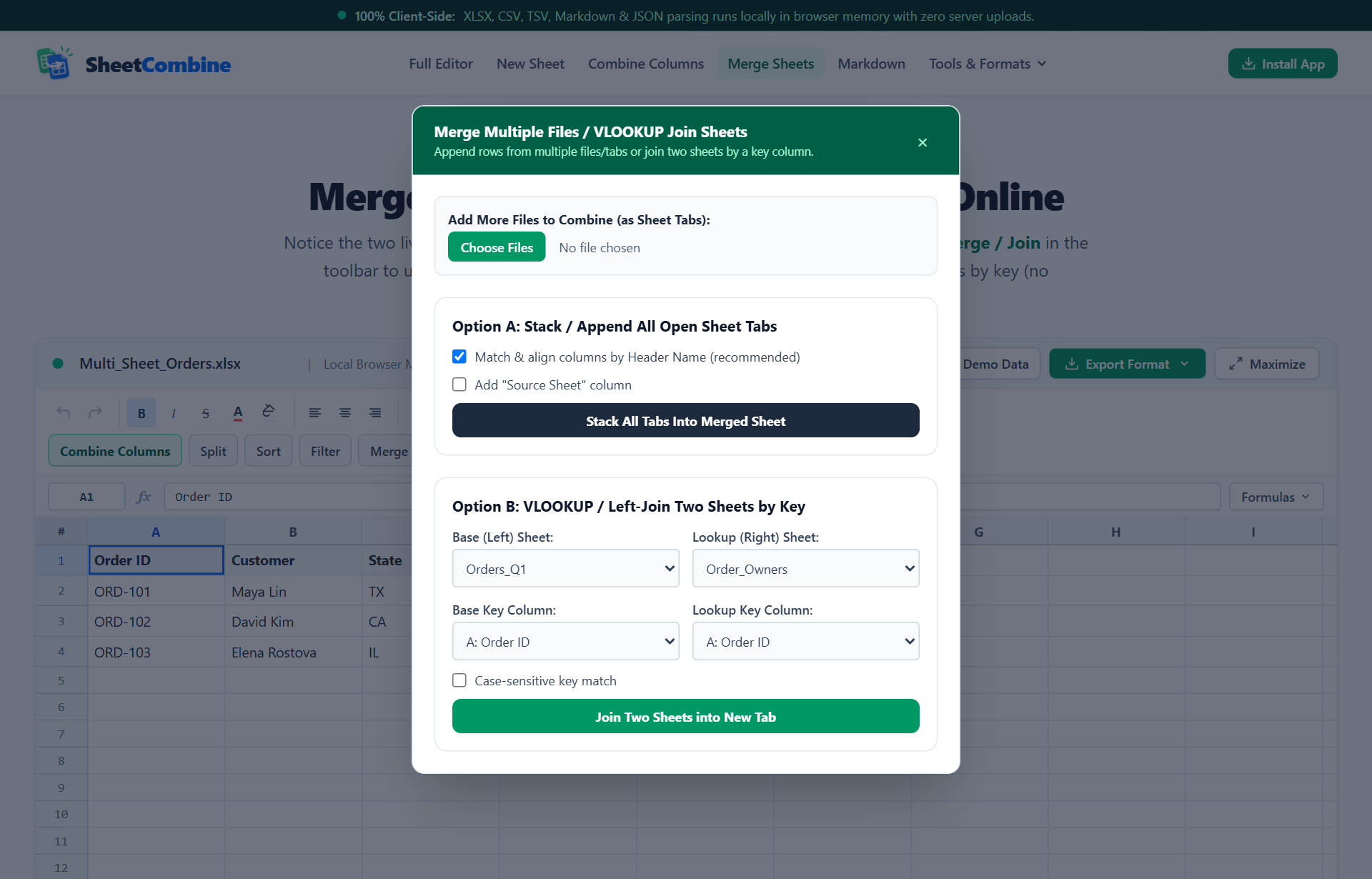
Select the Merge / Join action button to launch the visual sheet joiner without writing VLOOKUP or XLOOKUP formulas.
- 3
Select VLOOKUP Left Join or Append Vertically
Choose the primary sheet and secondary sheet, pick the matching key column on both sides (such as Order ID), and decide whether to drop unmatched columns or trim/ignore case.
- 4
Inspect Joined_Sheet and export
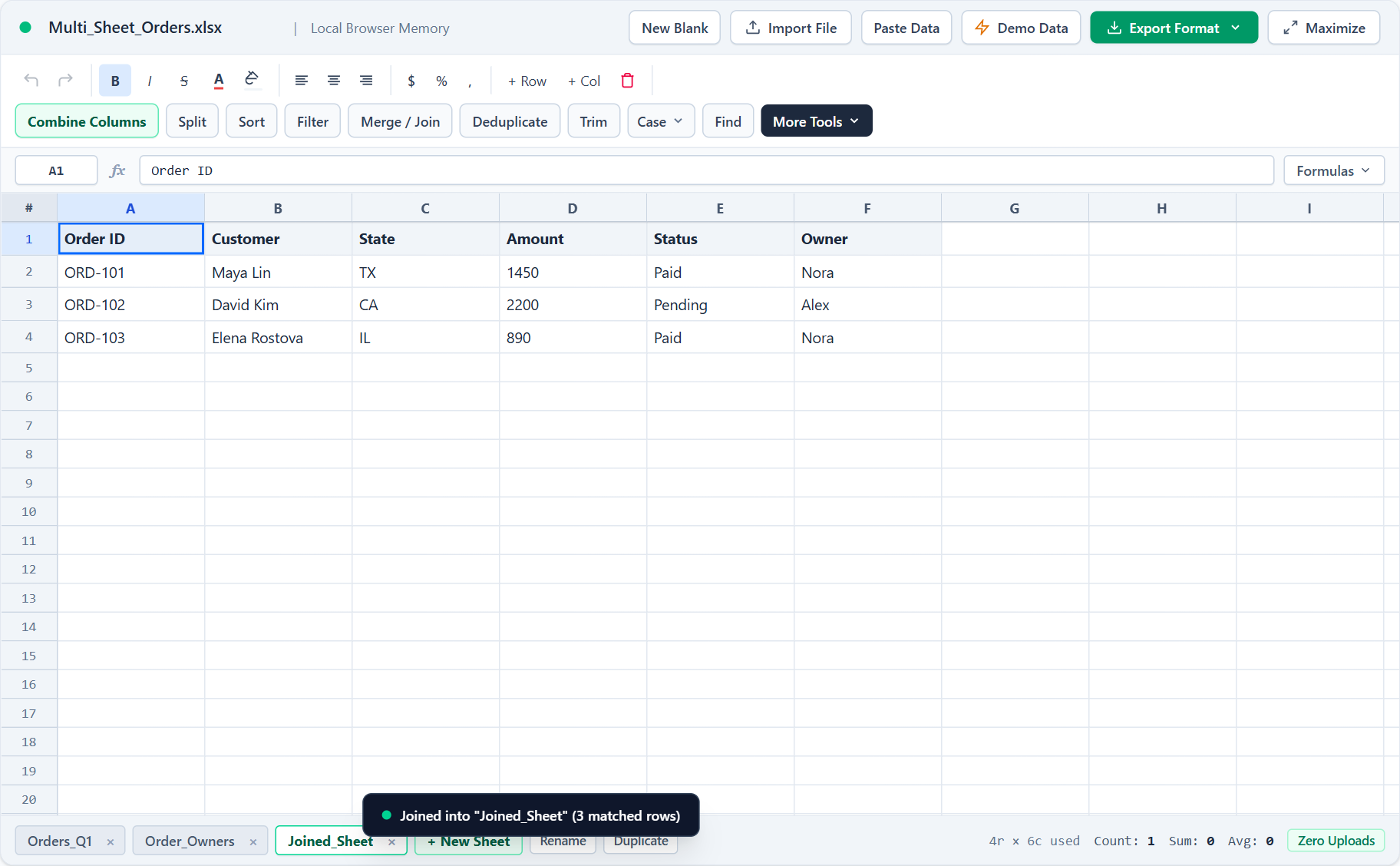
SheetCombine writes the merged rows into a clean Joined_Sheet tab with static values — zero #N/A links — ready to save as styled .xlsx or .csv.
Joining two spreadsheets by ID in desktop Excel forces brittle formulas like =VLOOKUP(A2, Order_Owners!$A$2:$C$50, 2, FALSE), breaks whenever source columns move left or right, and throws #N/A errors over hidden trailing spaces. Using SheetCombine's visual joiner, you can Left Join two workbook tabs on any key column or stack monthly CSV reports into one consolidated sheet in under 30 seconds.
Two Different Ways People Say "Merge Sheets"
Before picking a tool, confirm whether you want to join rows horizontally by ID or stack rows vertically:
| Goal | Mode | Example Use Case |
|---|---|---|
| Add columns from Tab B onto matching rows in Tab A | VLOOKUP / Left Join | Match Order ID in Orders_Q1 against Order_Owners to pull Status & Owner |
| Stack rows from Tab B directly underneath Tab A | Append / Stack Vertically | Combine Q1, Q2, and Q3 sales exports that share identical headers into one master table |
Method 1: Manual Excel VLOOKUP / XLOOKUP Workflow
When updating a recurring report directly inside Excel, follow this sequence to avoid silent errors:
- Clean stray trailing spaces in both lookup columns using
=TRIM(A2)first. - With modern Excel 365, prefer
XLOOKUPoverVLOOKUPso inserted columns never shift column index numbers:=XLOOKUP(A2, Order_Owners!$A$2:$A$50, Order_Owners!$C$2:$C$50, "Unassigned", 0) - If stuck on older Excel without
XLOOKUP, lock your lookup table with$signs and passFALSEas the fourth argument:=VLOOKUP(A2, Order_Owners!$A$2:$C$50, 3, FALSE) - Copy your lookup column and Paste Values before sharing or exporting CSV so external references never break.
Method 2: Zero-Formula Visual Left Join in SheetCombine
If you have two separate CSV files, pasted tables, or tabs in an .xlsx workbook and want one clean merged sheet immediately, open the Merge & Join Sheets tool:
- Import a multi-sheet
.xlsxworkbook (each worksheet becomes its own tab at the bottom), or load Sheet 1, click + New Sheet, and paste/import your lookup table as Sheet 2. - Click Merge / Join in the green toolbar to open the join modal.
- Select your Primary Sheet (
Orders_Q1) and Secondary Sheet (Order_Owners). - Pick Order ID under Left Key Column and Right Lookup Key. Leave trim & case-insensitive matching enabled if your IDs have inconsistent capitalization.
- Click Run Merge / Join. SheetCombine creates a dedicated Joined_Sheet tab containing all matched columns cleanly combined.
Troubleshooting Common Merge & Lookup Mistakes
- Need composite multi-column keys? If no single column uniquely identifies a row (for example joining on
First Name+Company), run Combine Columns on both sheets first to create a shared key column. - Hidden duplicate keys on the lookup sheet: Run Column Profiler & Deduplicate beforehand to verify whether your lookup ID column contains unexpected duplicates.
- Leading zeros stripped in CSV keys: Keep numeric IDs like
00412as raw strings inside SheetCombine rather than re-opening CSVs in desktop Excel, which strips leading zeros on launch.
Run It Yourself — Zero Server Uploads
Ready to process your own workbook?
Every transform runs in your local browser memory. Paste data, import .xlsx / .csv / .md, apply styles, and export clean results immediately.
Frequently Asked Questions
How does SheetCombine Left Join replace VLOOKUP in Excel?▼
Instead of nesting =VLOOKUP(A2, Order_Owners!$A$2:$C$100, 2, FALSE) across thousands of cells, SheetCombine indexes your lookup tab in browser memory, matches rows by key column (with optional case-insensitive and whitespace trimming), and pulls all columns from the lookup tab cleanly into a fresh Joined_Sheet tab.
Why does desktop Excel VLOOKUP return #N/A on values that look identical?▼
Hidden trailing spaces ("ORD-101 " vs "ORD-101"), casing mismatches ("ord-101"), or text-vs-number formatting mismatches cause exact VLOOKUP matches to fail. Trimming whitespace and ignoring key case resolves almost all false #N/A lookups.
Can I merge sheets where the lookup column sits on the right side of the second tab?▼
Yes. Traditional VLOOKUP requires the key column to sit on the far left of the lookup range. SheetCombine lets you match any column index from either sheet regardless of column position.
What is the difference between Left Join (VLOOKUP) and Append / Stack Vertically?▼
Left Join merges columns side-by-side when each row shares a common ID (for example adding Owner or Email onto Orders). Append Vertically stacks rows one below another when multiple sheets share the same columns (for example combining January, February, and March reports).
More Spreadsheet Guides
View All Guides →Combine Two Columns in Excel & CSV
Concatenate First Name + Last Name or create composite lookup keys like SKU-Region.
Data CleaningAudit, Deduplicate, Sort & Clean Messy CSV Data
Check for duplicate keys before joining sheets so 1-to-many lookups do not surprise you.
Format ConversionCSV vs TSV vs JSON & SQL Export Guide
Download finished joins cleanly as styled XLSX, CSV, JSON, or SQL.